
Add team members and leads
Add team members and leads
Use People settings to invite people into your workspace and choose the right access level for each person.
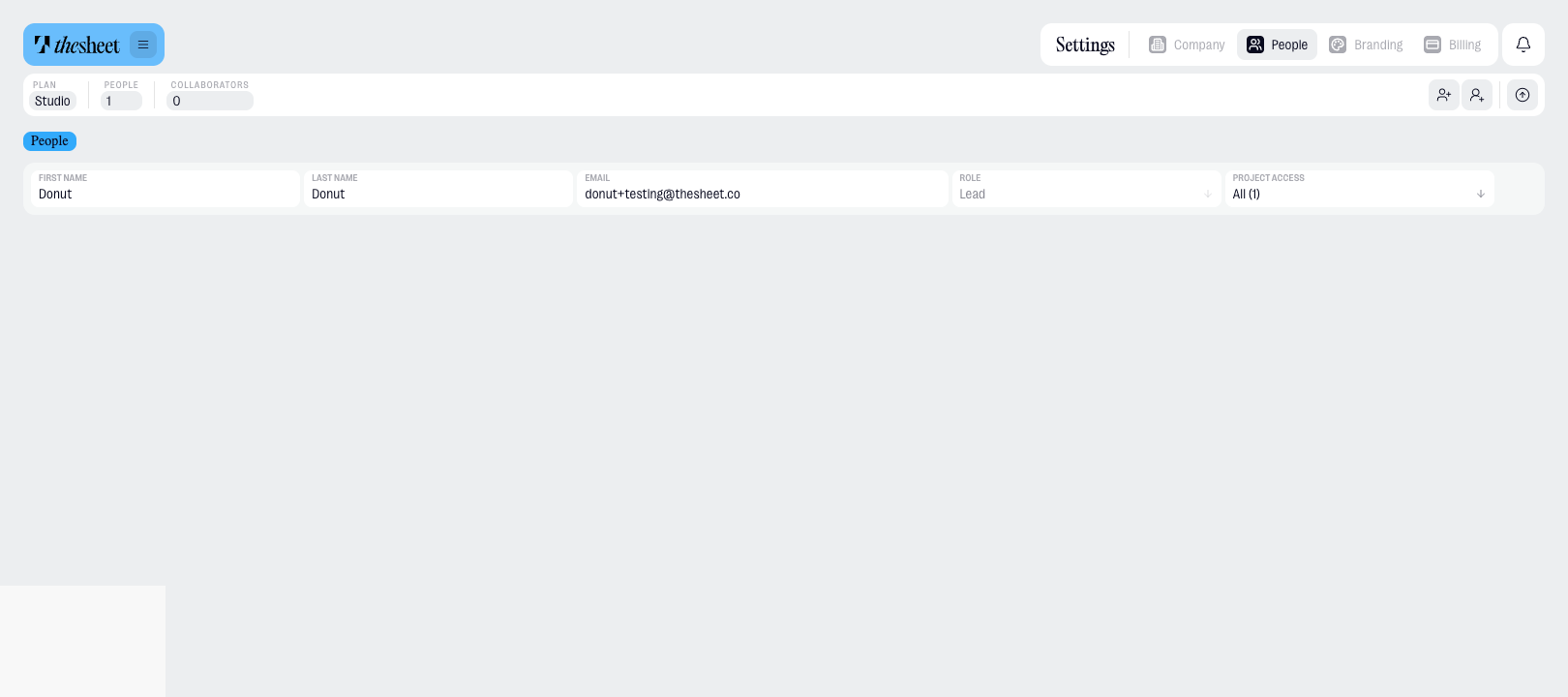
Open People settings
- Go to Settings.
- Select People.
- Choose whether to add a member or a lead.
Choose the right access level
The person who opened the account is a Lead.
Leads can add:
- Members — people who can access selected projects, but cannot access company settings.
- Leads — people who can access all projects and company settings.
Use member access when someone only needs to work on specific projects. Use lead access when someone should help manage the workspace.
Add a member
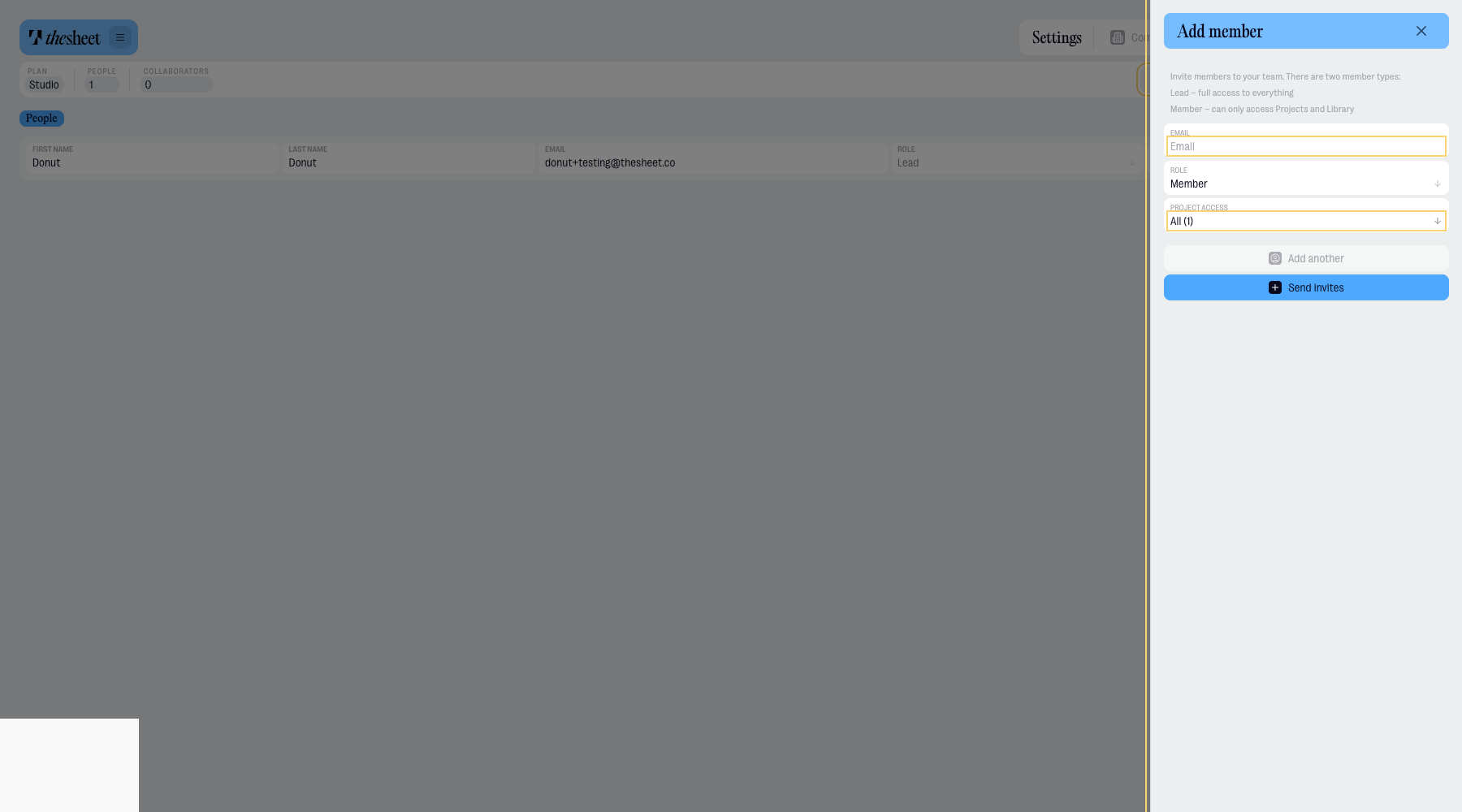
- Select Add member.
- Enter their email address.
- Choose which projects they can access.
- Send the invitation.
Choose project access
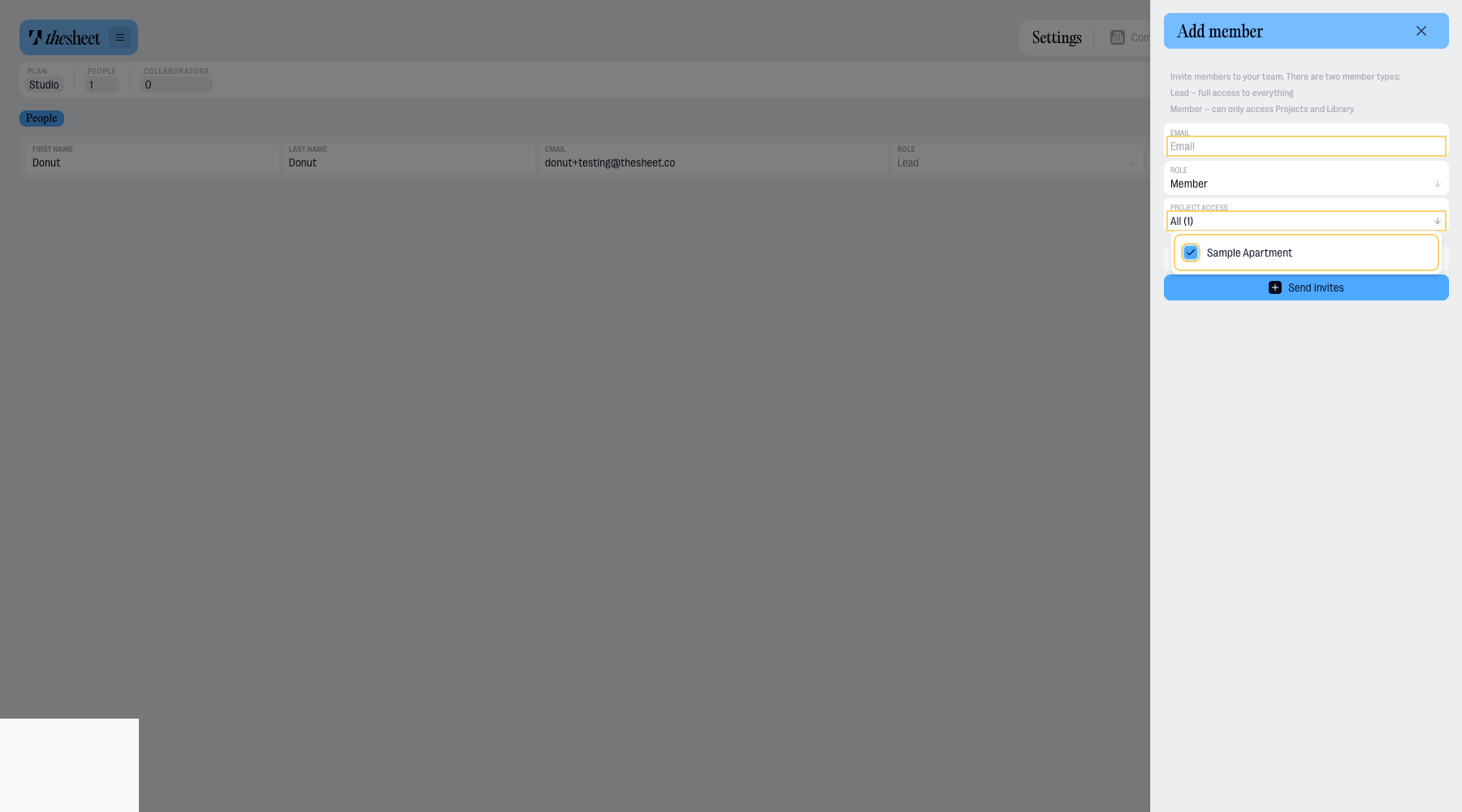
When you add a member on Studio or Agency, select the projects they should be able to open.
Members can work in the projects you choose for them. They do not get access to company settings.
Plan availability
On Solo, you can add members, but you cannot choose project-by-project access. People added to a Solo workspace have the same workspace rights.
On Studio and Agency, leads can add members or other leads. Members can be limited to selected projects, while leads can access all projects and company settings.
Agency includes unlimited users.