
Share a project with a client or project contact
Share a project with a client or project contact
Client sharing lets you send a project link to someone outside your workspace, such as a client, builder or other project contact. They can use the link to access the shared project without signing in.
Open sharing settings
- Open the project you want to share.
- Select Share to Client.
- The Share dialog will open.
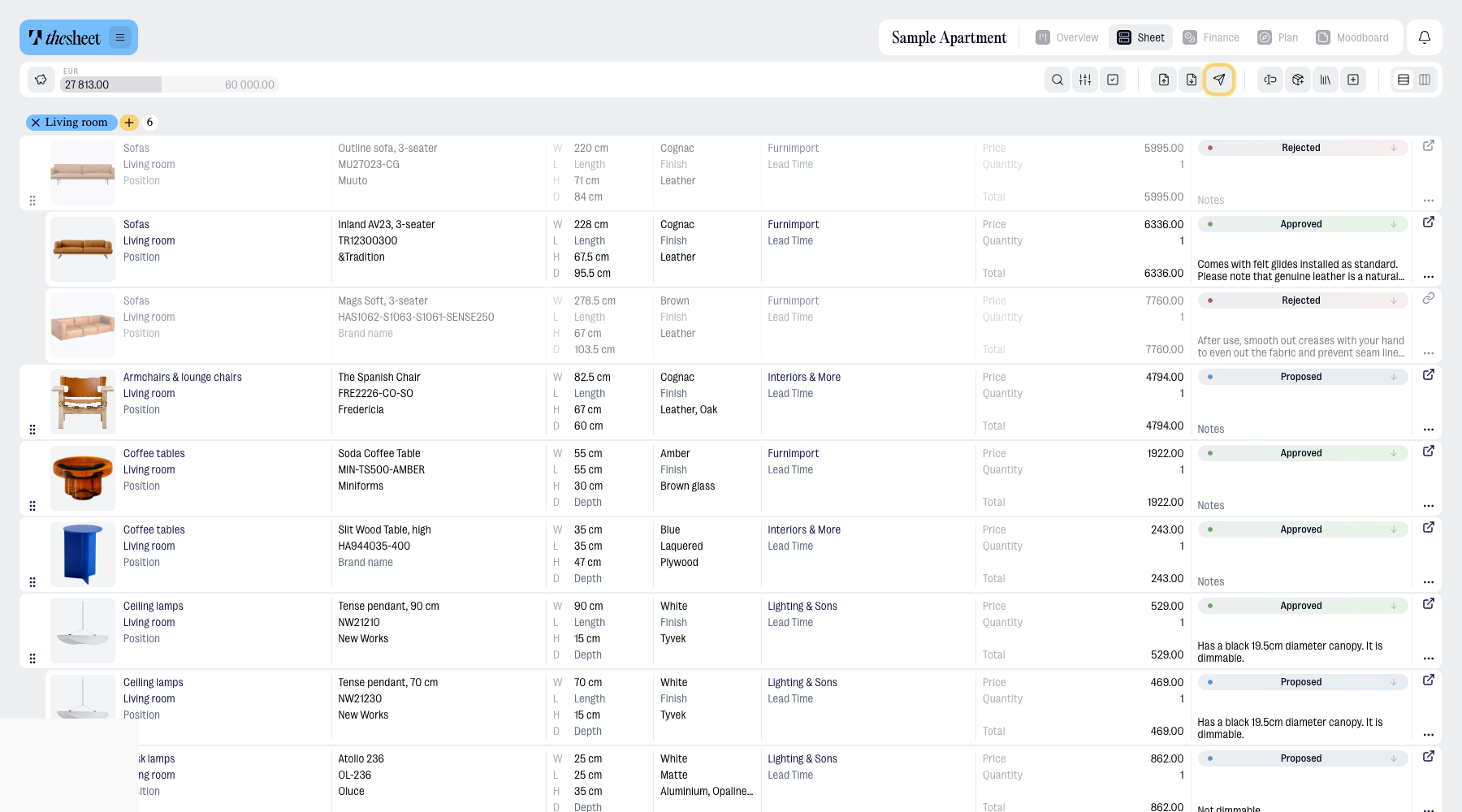
Choose what to share
Use the visibility sections to choose what appears in the shared view.
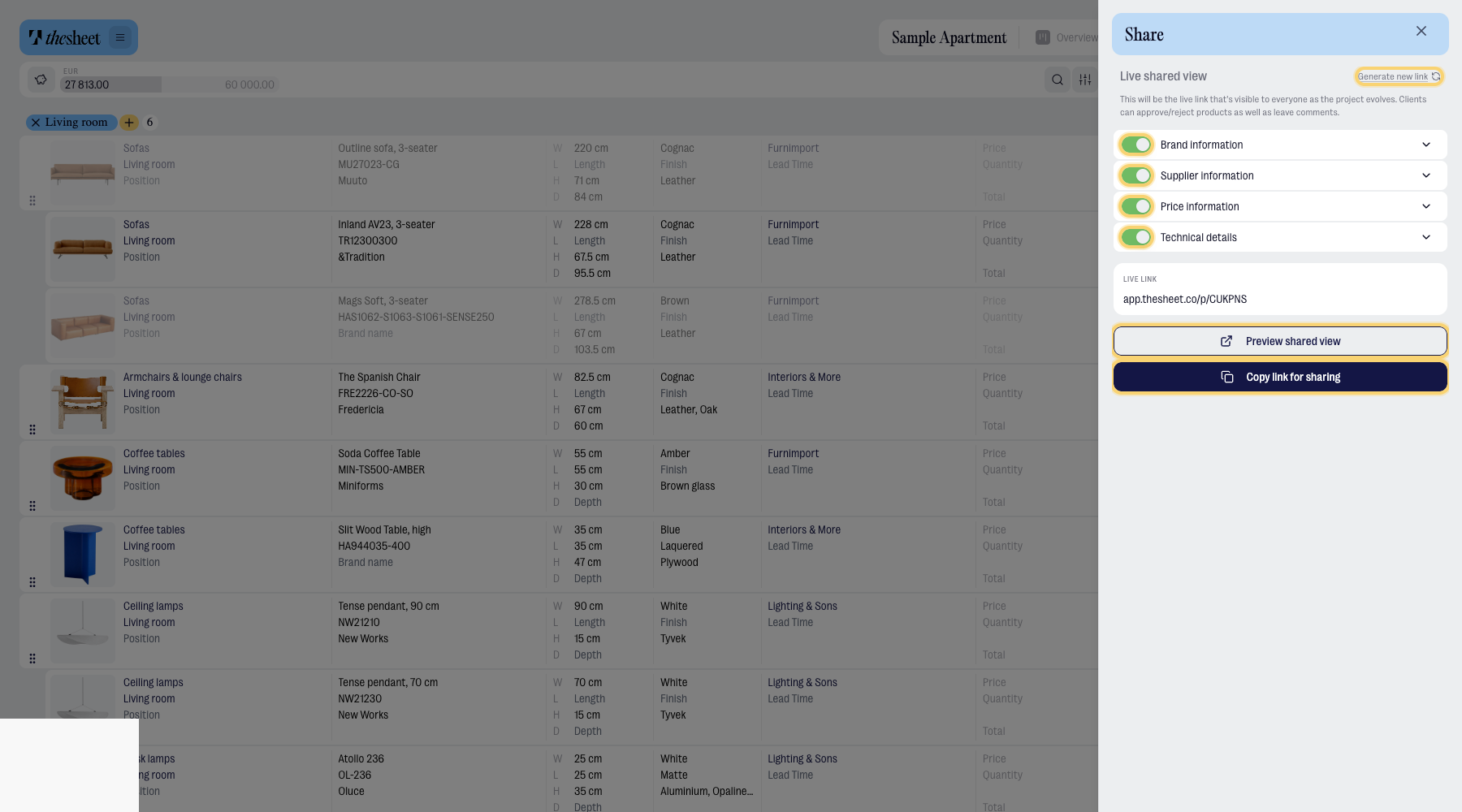
You can control:
- Brand information
- Brand name
- Product SKU
- Supplier information
- Supplier name
- Product URL
- Lead time
- Price information
- Price
- Total
- Technical details
- Position
- Notes
- Instructions
Turn each section or individual option on or off depending on what the person receiving the link should see.
Preview the shared view
Select Preview shared view before sending the link.
Use the preview to check that the shared project includes the right information and hides anything you do not want to show.
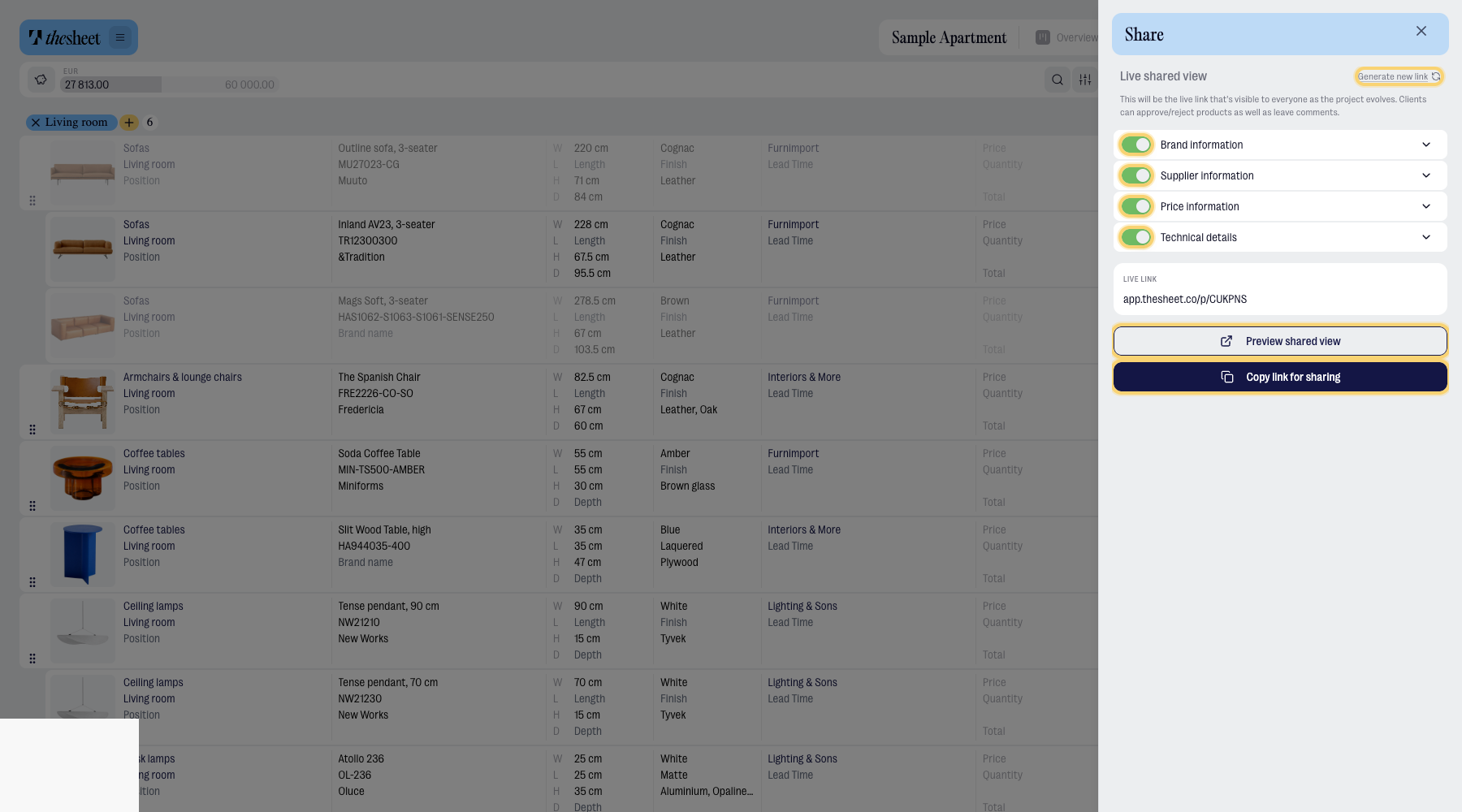
Copy the sharing link
When you’re ready:
- Check the LIVE LINK section.
- Select Copy link for sharing.
- Send the link to your client or project contact.
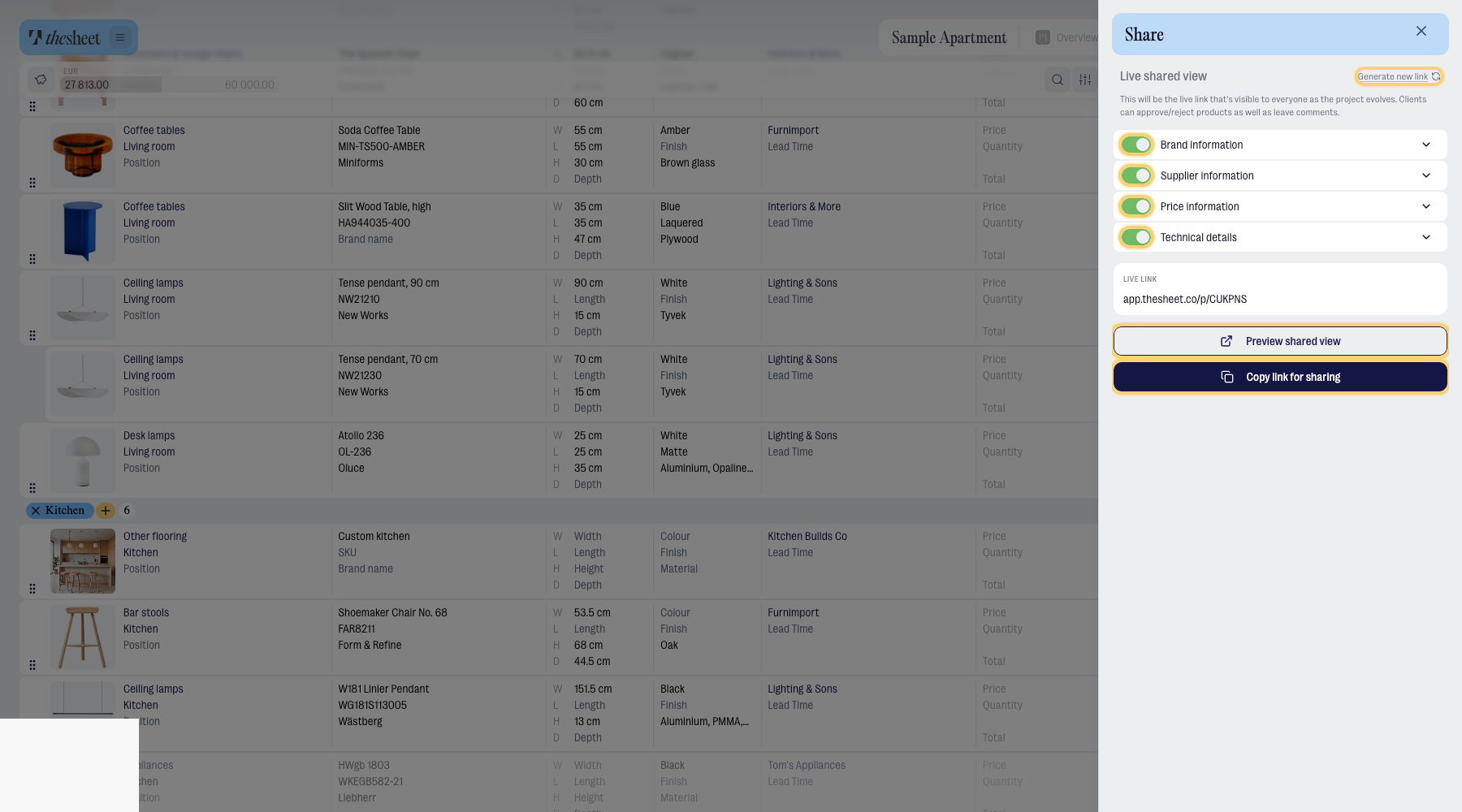
They can open the shared project from the link without signing in.
Generate a new link
Use Generate new link if you need to replace the current sharing link, for example if the old link was sent to the wrong person.
After generating a new link, copy and send the updated link.
Plan availability
On Solo, you can preview the shared view and copy the project link. The visibility settings and link regeneration are not editable.
On Studio and Agency, you can choose what information is visible, preview the shared view, copy the link and generate a new link when needed.