
Studio branding
Studio branding
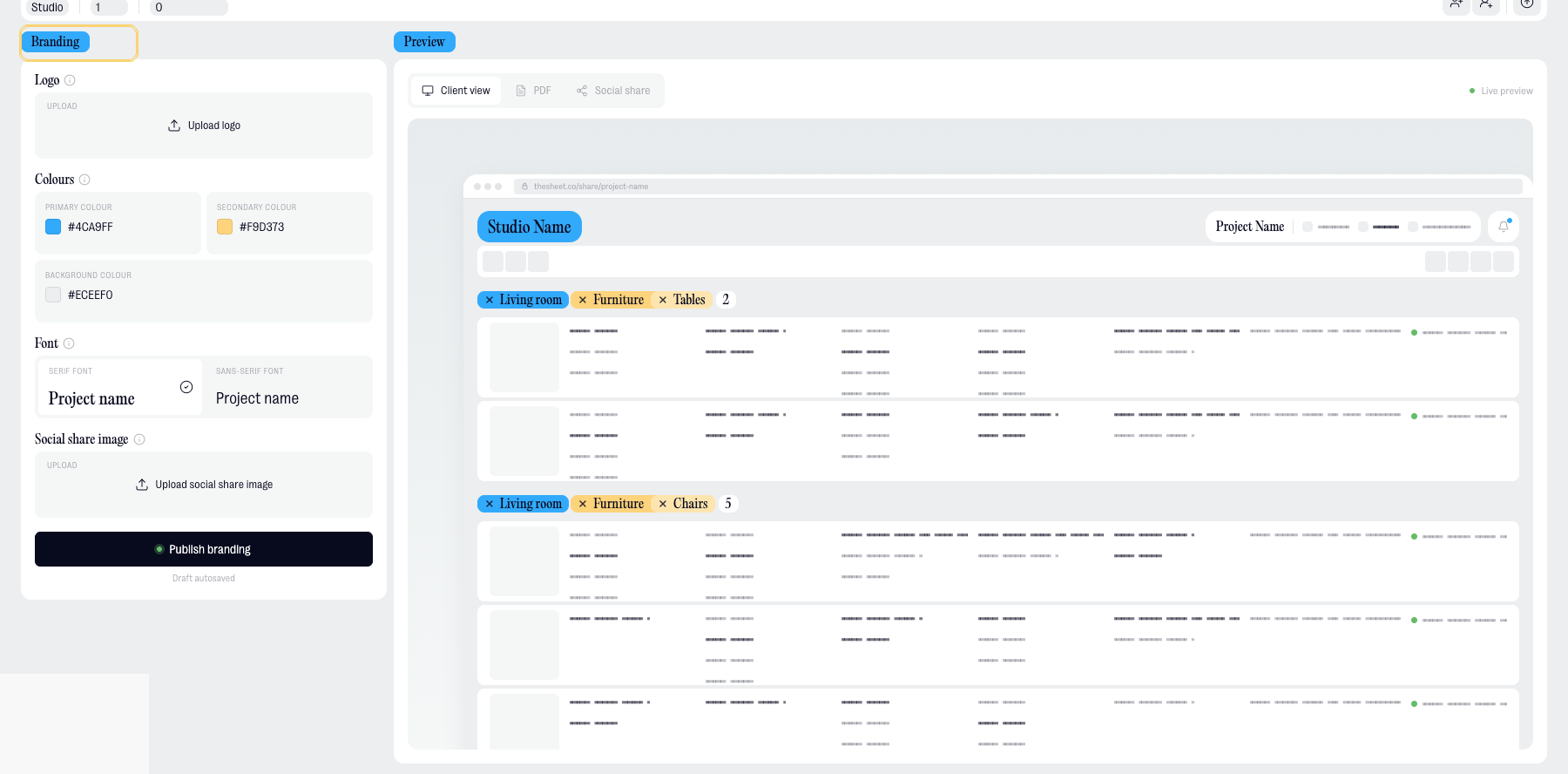
Use studio branding to make shared pages, PDFs and link previews feel more like your studio. Add your logo, colours, font style and social share image, then check the preview before publishing.
Open branding settings
- Go to Settings.
- Select Branding.
Add your logo
Upload your studio logo so it can appear on shared pages and branded outputs.
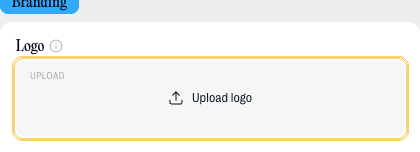
After uploading the logo, check the preview to make sure it has enough contrast and fits cleanly in the available space.
Choose your brand colours
Set the colours you want thesheet to use for your studio branding.
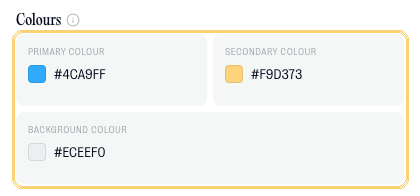
Use colours that match your studio identity and stay readable on screen and in exported documents.
Choose your font style
Select the font style that best matches your studio’s visual identity.
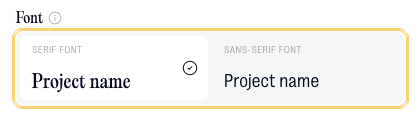
Use the preview to check that headings, labels and shared views still feel clear and easy to read.
Add a social share image
Upload a social share image if you want a specific image to appear when a branded project link is shared.
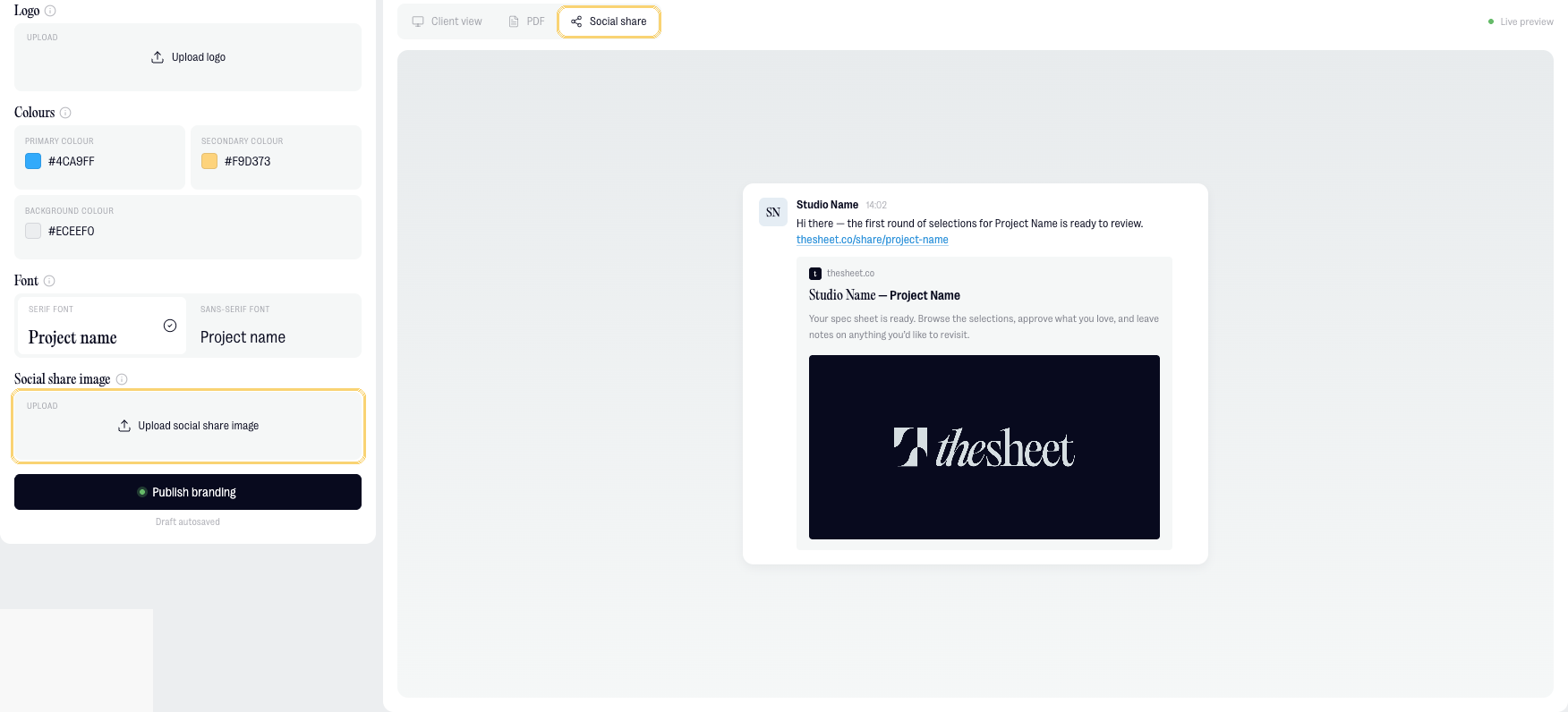
If you do not upload a social share image, thesheet uses the designated project image as the fallback. On Solo accounts, the thesheet logo is displayed.
Preview and publish your branding
- Review the preview.
- Make any changes you need.
- Select Publish when you’re ready to use the branding.
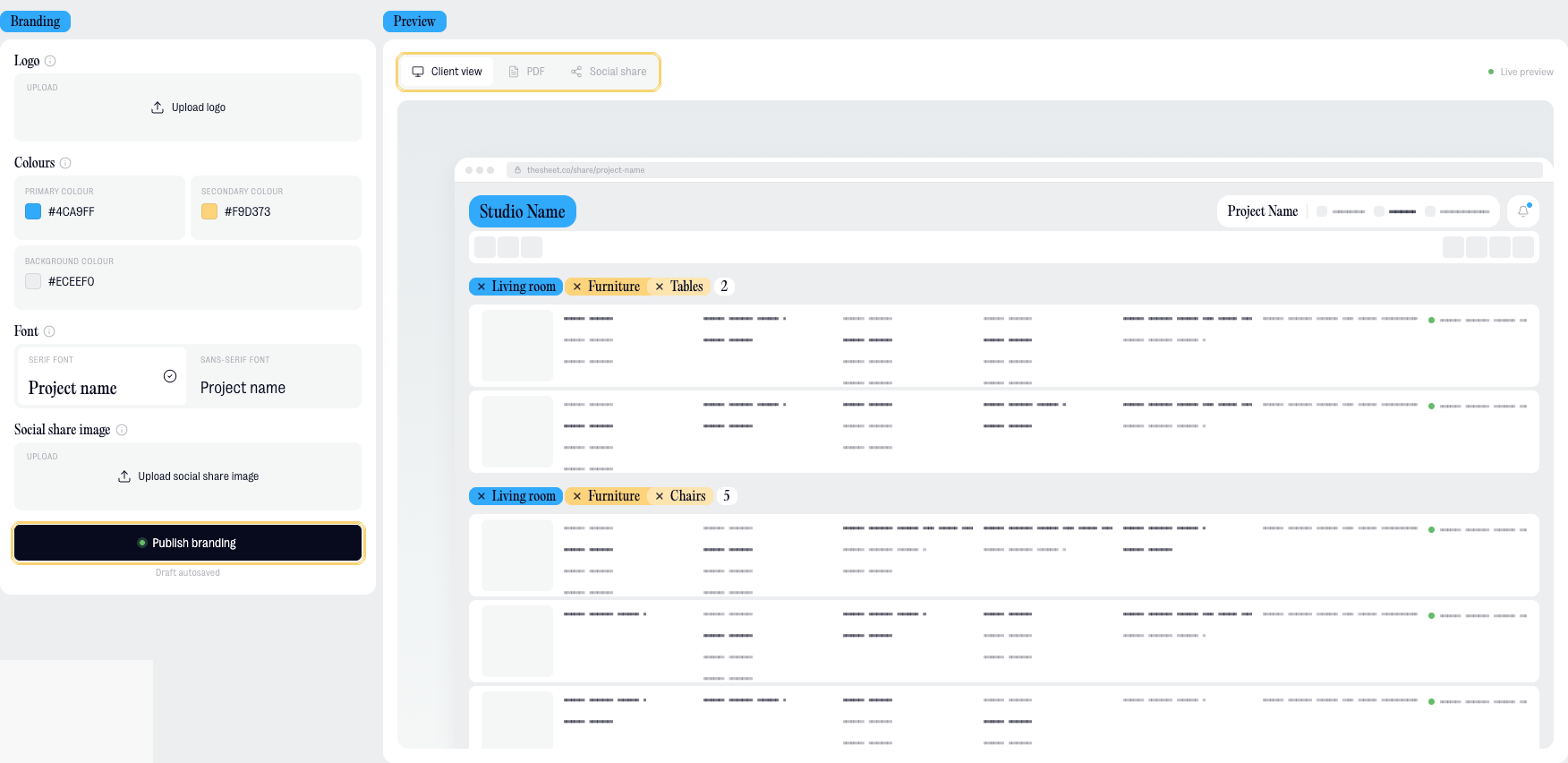
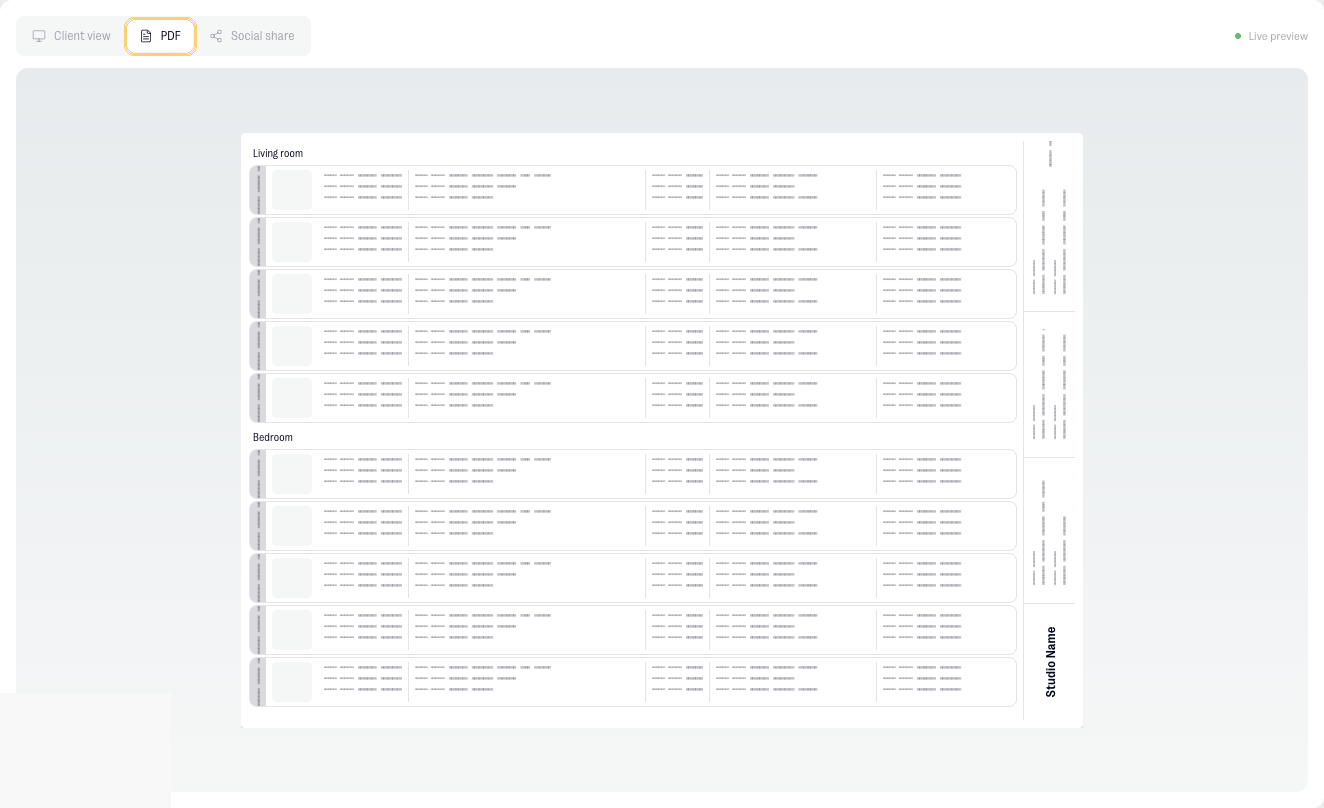
You can also switch to the PDF preview to check how branded exports will look.
If publishing is not available on your current plan, use Upgrade to publish to move to a plan that includes studio branding.
Plan availability
On Solo, you can set up and test studio branding before upgrading. Published branding uses the thesheet logo.
On Studio and Agency, you can publish studio branding for shared pages, PDFs and link previews.